

1. Install and launch Avellio
Install Avellio, run a first audit, review findings, fix safely, and verify the result.
READ-ONLY Typical time: 2–5 minutes. Document impact: none. Success looks like: the Avellio palette opens for the intended document and the Loader and Engine are connected.
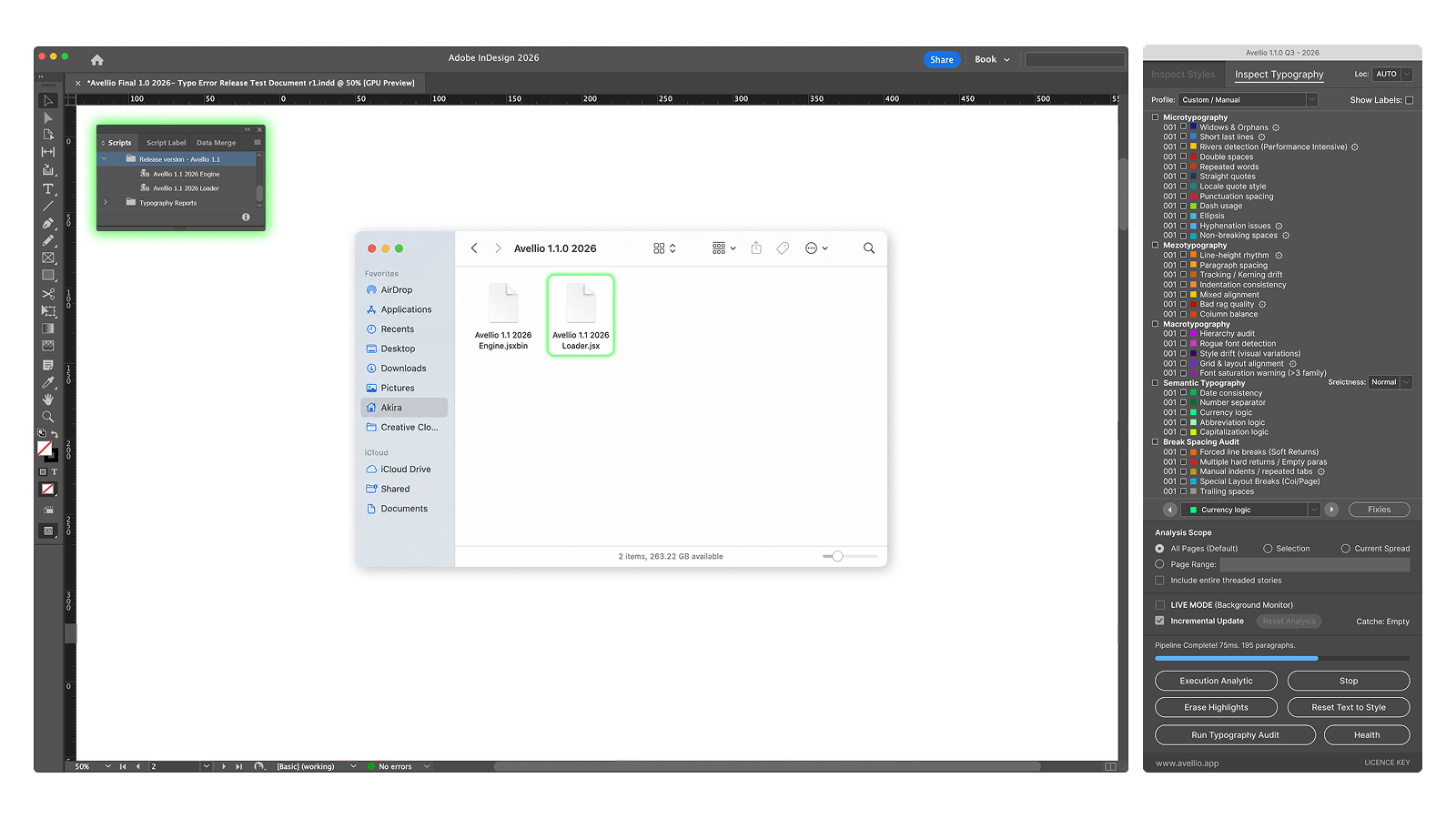
1.1 Keep the package together
Avellio is distributed as two matched components:
- an Avellio Loader (
.jsx); - the corresponding protected Engine (
.jsxbin).
Keep both supplied files together. Do not rename them, edit the Engine, or combine a Loader and Engine from different releases.
1.2 Install the package
- Open Adobe InDesign.
- Choose Window > Utilities > Scripts.
- In the Scripts panel, reveal the user scripts folder in Finder or File Explorer.
- Copy the complete Avellio package into that folder.
- Reopen or refresh the Scripts panel if the package does not appear.
- Run the Loader to start Avellio. Do not run the Engine directly.
1.3 Activate when prompted
Enter your license key and allow the initial online validation to finish. The KEY control at the bottom of the palette opens license status and license management.
1.4 Open the correct document first
Avellio binds the palette to the document that is active when the Loader starts.
- Open the document you want to inspect.
- Make that document active.
- Run the Avellio Loader.
If you later switch to a different InDesign document, close Avellio and launch it again with the new document active.
Success looks like: the palette responds to the intended document. If it reports a different bound document or Engine disconnection, stop here and correct the launch before auditing.
Release sourceThis page was generated from the Markdown companion of the verified distribution PDF.