

10. The Action Layer
The full operational, safety, workflow, reporting, locale, and issue reference.
NEW IN Q3 FIX The Action Layer turns the latest Typography Audit into a guarded decision process. It does not treat all findings as equally safe to change.
10.1 Prerequisite
The Fixes button requires a completed Typography Audit and a current report model. If only Live Mode or Execute Analytics has run, Avellio can ask you to run Typography Audit first.
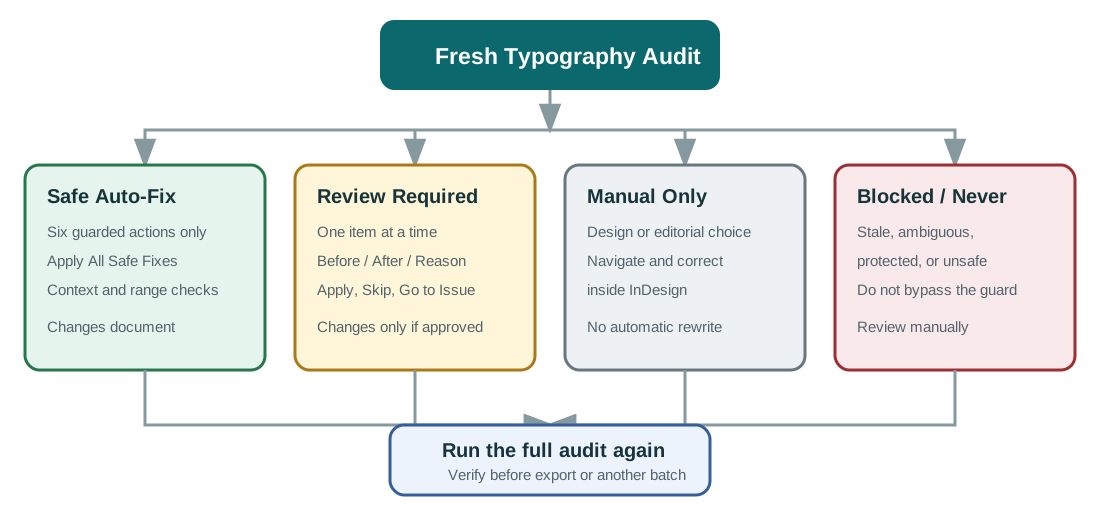
Opening Fixes builds a Fix Plan with four safety classes:
- Safe Auto-Fix
- Review Required
- Manual Only
- Blocked / Never Fix
The same issue type can receive a different safety class when its context is ambiguous, protected, locale-sensitive, stale, or insufficiently precise.
10.2 Safe Clean
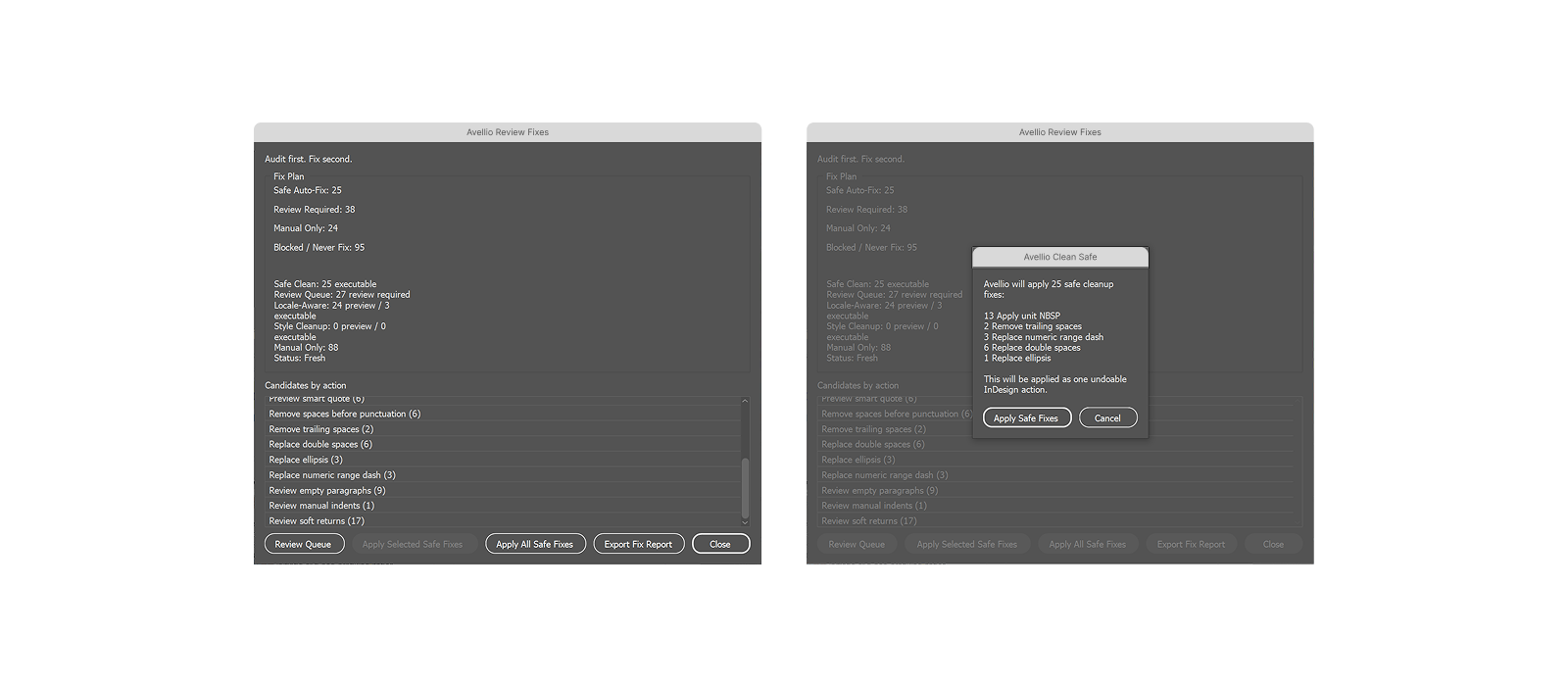
Apply All Safe Fixes applies only candidates that pass the production guards. The Safe Clean action set is deliberately limited to:
| Safe Clean action | Eligible case |
|---|---|
| Remove trailing spaces | Ordinary trailing spaces or tabs, excluding protected NBSP/NNBSP cases. |
| Replace double spaces | A clear run of normal prose spaces. |
| Remove spaces before punctuation | A clear Western-prose case; French punctuation contexts are guarded. |
| Replace ellipsis | An exact ... sequence that passes the context guard. |
| Replace numeric range dash | A clear numeric or page range suitable for an en dash; paths, URLs, emails, identifiers, and negative-number contexts are guarded. |
| Apply unit NBSP | A recognized number-unit pair where a non-breaking space is appropriate. |
Safe Clean does not batch-remove empty paragraphs, soft returns, layout breaks, manual indents, prose double hyphens, or arbitrary straight quotes.
Before the batch starts, Avellio prepares the candidates and asks for confirmation. If preparation cannot prove safety, no document change is made. Applied, skipped, stale, failed, and guarded results are summarized after the transaction.
10.3 Review Queue
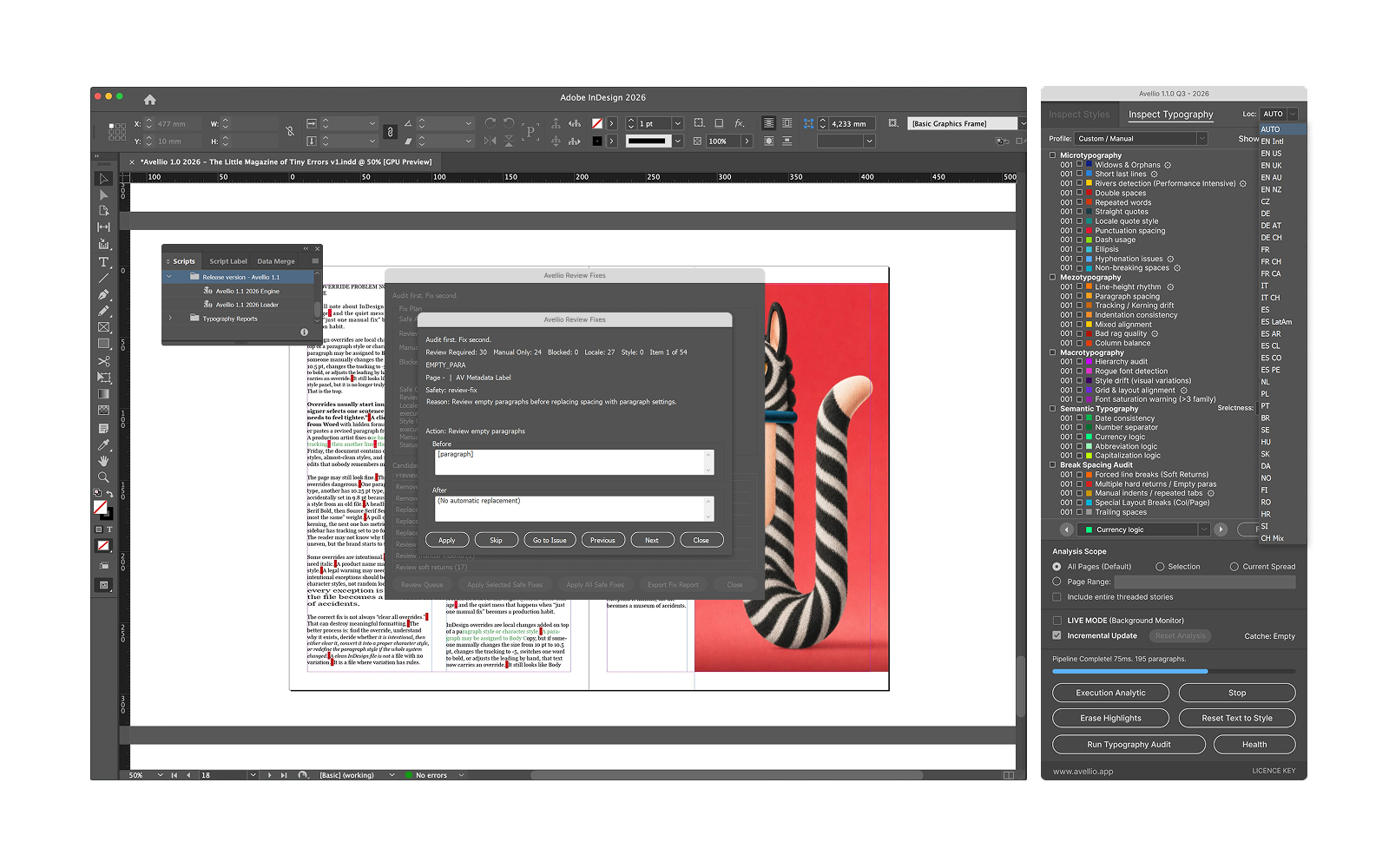
Review Queue combines executable contextual candidates and manual-only findings into an item-by-item workflow. It displays:
- Before and After previews where available;
- page and paragraph style;
- locale metadata;
- safety and reason;
- the proposed action;
- Apply, Skip, Go to Issue, Previous, and Next.
Only one executable candidate is applied at a time and only after confirmation.
Typical Review Queue actions include:
- review a soft return;
- review an empty paragraph;
- review a manual indent;
- review consecutive tabs;
- apply a Czech or Polish short-preposition NBSP;
- insert a clearly missing space after punctuation;
- replace a straight apostrophe inside a word;
- replace an exact one-character straight quote where the local direction is unambiguous;
- reset a precisely identified local formatting property to its paragraph style.
Apply Selected Safe Fixes is visible but disabled in this release. Selection-based batch execution is not available. Use Apply All Safe Fixes for the guarded Safe Clean batch or the Review Queue for individual items.
10.4 Locale-aware text corrections
Locale-aware corrections require both an exact range and sufficiently clear locale evidence. The production release can present reviewable actions for:
- Czech and Polish short-preposition non-breaking spaces;
- missing punctuation-after spacing;
- apostrophes inside words;
- an exact locally unambiguous straight quotation mark.
The following remain preview-only or manual because automatic rewriting could change meaning or choose the wrong convention:
- complete smart-quote pairing and nested quote style;
- ambiguous date order;
- number separator conversion;
- currency placement conversion;
- abbreviation rewriting.
10.5 Style Cleanup actions
Style Cleanup can reset an exact, reviewable local property to the applied paragraph style. Supported properties include:
- applied font;
- tracking;
- leading;
- Space Before;
- Space After;
- first-line indent;
- left indent.
These actions require an exact target and a stable current value. Broad or ambiguous cases remain manual-only. Style drift and faux small caps are preview findings; Avellio does not normalize them automatically. A whole-paragraph rogue font or an imprecise tracking range is not treated as a safe exact reset.
10.6 Manual Only and Blocked / Never Fix
Manual-only candidates include design decisions and ambiguous conversions, such as:
- layout, column, frame, and page breaks;
- smart-quote pairing without exact direction;
- dates, numbers, currencies, and abbreviations whose meaning depends on context;
- vertical rhythm without proof of an exact intended leading;
- style drift, faux small caps, hierarchy, and font saturation decisions;
- findings without a stable range or known property.
Blocked candidates fail a safety rule or cannot be matched reliably to the current document. Do not work around a block by applying a broader reset. Navigate to the issue and correct it deliberately in InDesign.
10.7 Stale Fix Plans
Any successful content-changing action can invalidate the remaining candidate offsets. Avellio marks the Fix Plan or report cache stale when the document may have changed. Run Typography Audit again before continuing with another batch or relying on the export.
10.8 Undo and verification
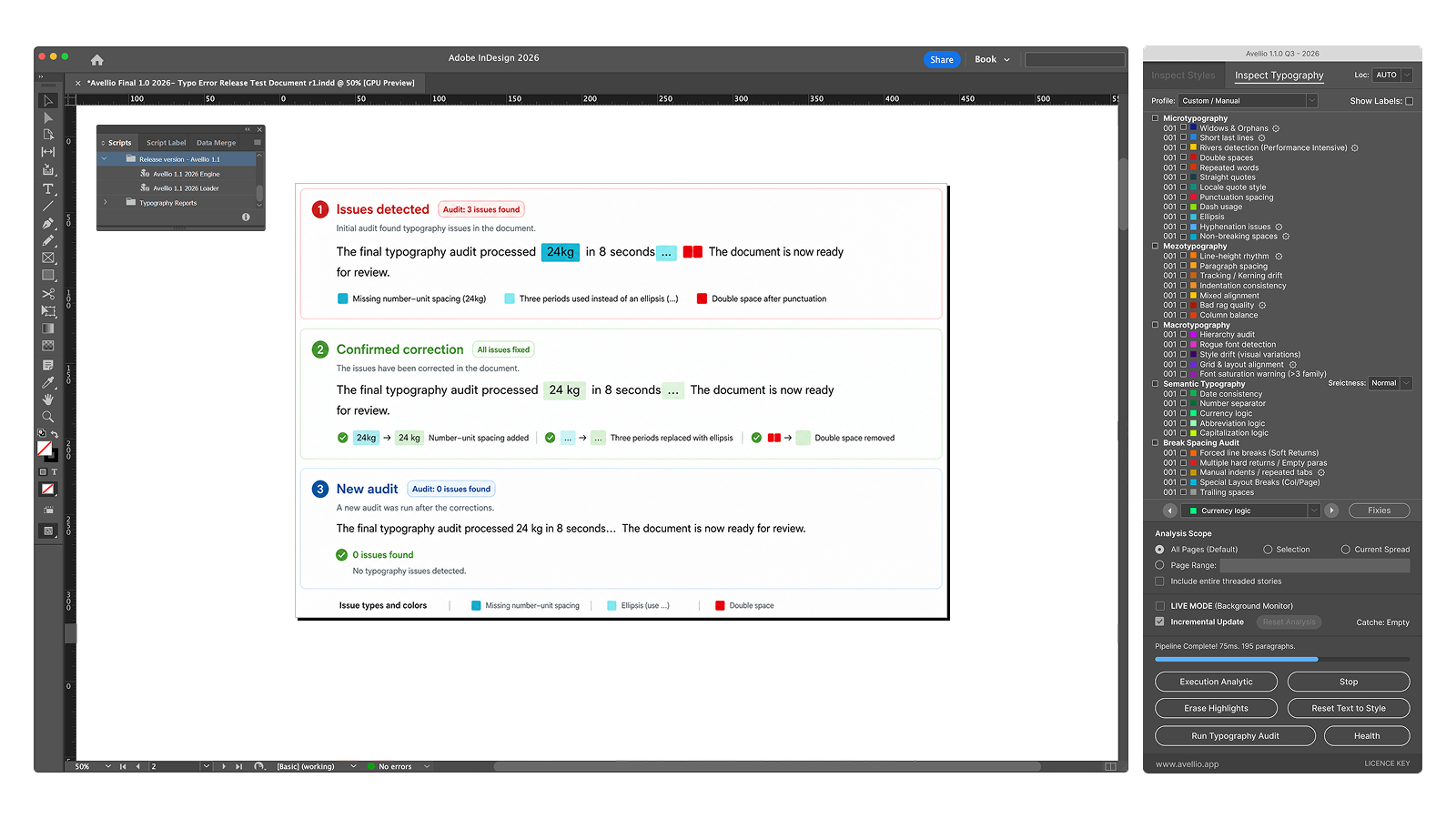
Corrective operations are grouped into undoable InDesign transactions where possible. After any correction:
- inspect the visible result;
- review InDesign Undo history;
- rerun the relevant audit;
- compare counts and remaining issues;
- export a fresh report only after the audit completes.
10.9 Marking intentional content — advanced API
The production engine exposes the advanced call AvellioAPI.markSelectedAsIntentional(). It applies the AVELLIO_IGNORE condition to selected paragraphs so the scan can suppress them.
This release does not provide a standard right-click Mark as intentional command, a Show suppressed view, or a full user-facing unsuppression manager. The API suppresses the selected paragraph as a whole, not an individual issue occurrence. Use it only in a controlled advanced workflow and document the exception externally.
Release sourceThis page was generated from the Markdown companion of the verified distribution PDF.