

7. Inspect Styles
The full operational, safety, workflow, reporting, locale, and issue reference.
7.1 Inspection Data
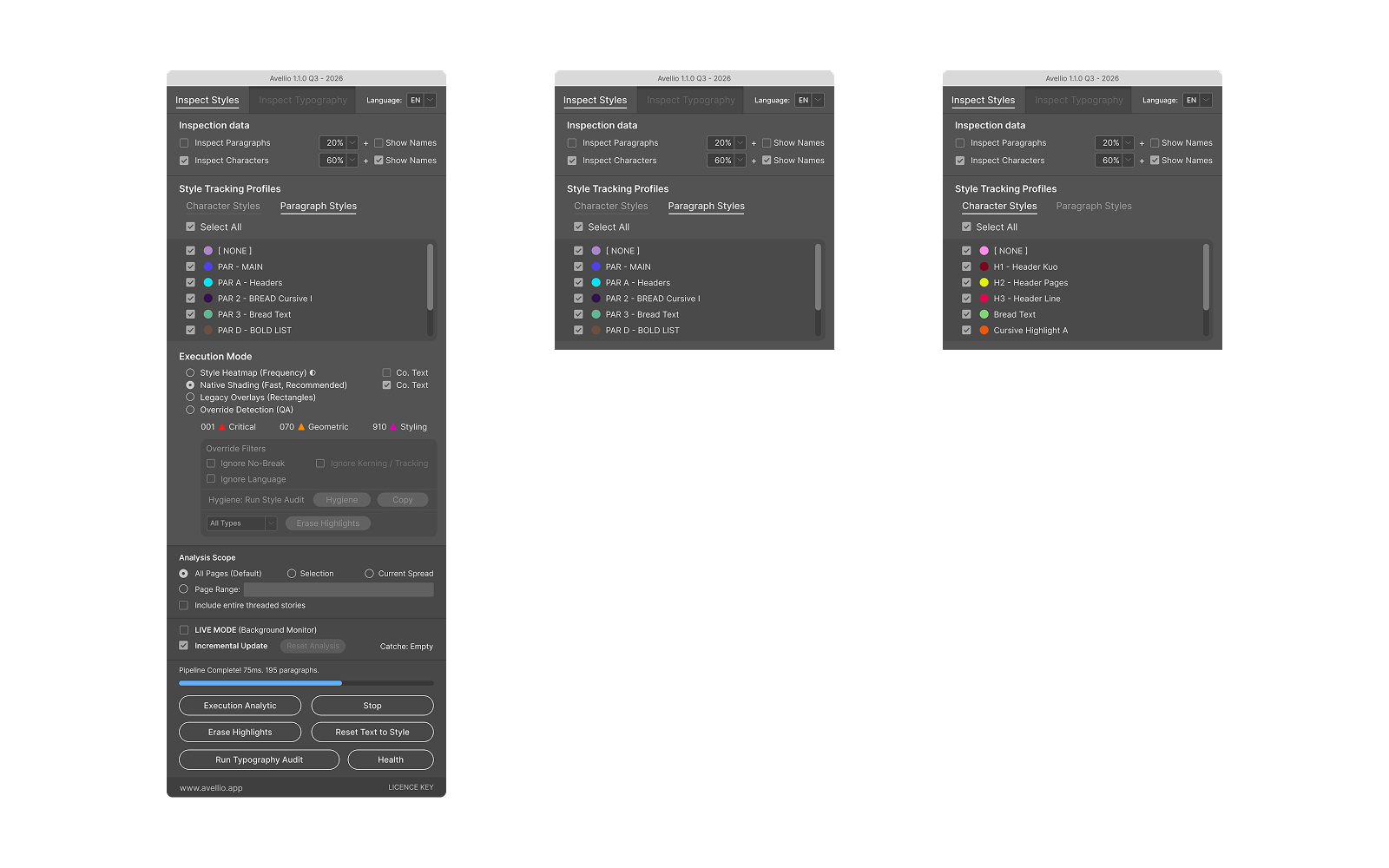
The Inspection Data panel controls the style sources included in the visualization.
- Inspect Paragraphs includes paragraph style usage.
- Inspect Characters includes character style usage.
- The percentage menu controls diagnostic opacity separately for paragraphs and characters.
- Show names adds style-name labels where supported.
Paragraph and character inspection can be used together or independently. Lower opacity is useful when the underlying design must remain readable; higher opacity makes coverage gaps easier to see.
7.2 Style Tracking Profiles
The Style Tracking Profiles area represents the style data discovered in the document. Use it to control which style families participate in the current visual inspection and to understand how often each style appears.
The tracking profile is a diagnostic selection, not a rewrite of the InDesign style system. Selecting or deselecting an item changes what Avellio visualizes; it does not edit the style definition.
7.3 Style Heatmap (Frequency)
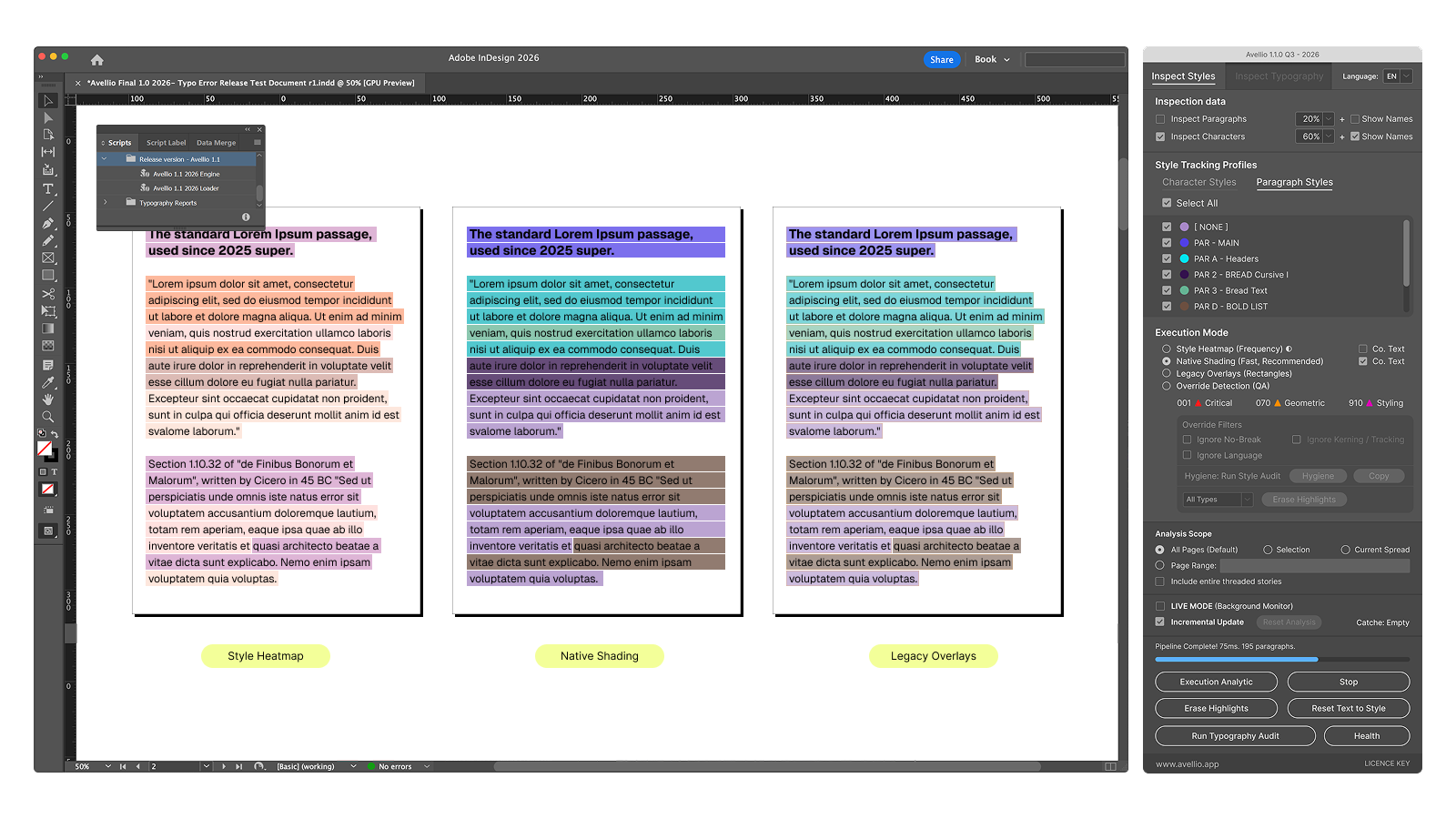
Style Heatmap assigns colors according to style usage and frequency. It is useful for:
- locating dominant body styles;
- finding rare styles that may be accidental;
- seeing paragraph and character style distribution;
- identifying regions whose visual treatment does not match their style role.
The circular accessibility control switches to a higher-contrast palette. Use it when neighboring heatmap colors are difficult to distinguish.
With Co.Text enabled, the heatmap uses Conditional Text indicators rather than local underline-based markers. This reduces the risk of creating visible style override indicators in InDesign.
7.4 Native Shading (Fast, Recommended)
Native Shading uses InDesign-native text rendering for a fast, responsive diagnostic view. It is the recommended visual mode for many documents.
When Co.Text is not enabled, Native Shading can add local paragraph shading and underline-based diagnostics. These are intended to be temporary but must be erased before final delivery.
7.5 Legacy Overlays (Rectangles)
Legacy Overlays draws rectangle objects on technical nonprinting layers. Use this compatibility mode when native text rendering is unsuitable or when you need object-based overlays.
Overlay generation can be slower and can add many technical objects in complex documents. Remove the overlays after review.
7.6 Override Detection (QA)
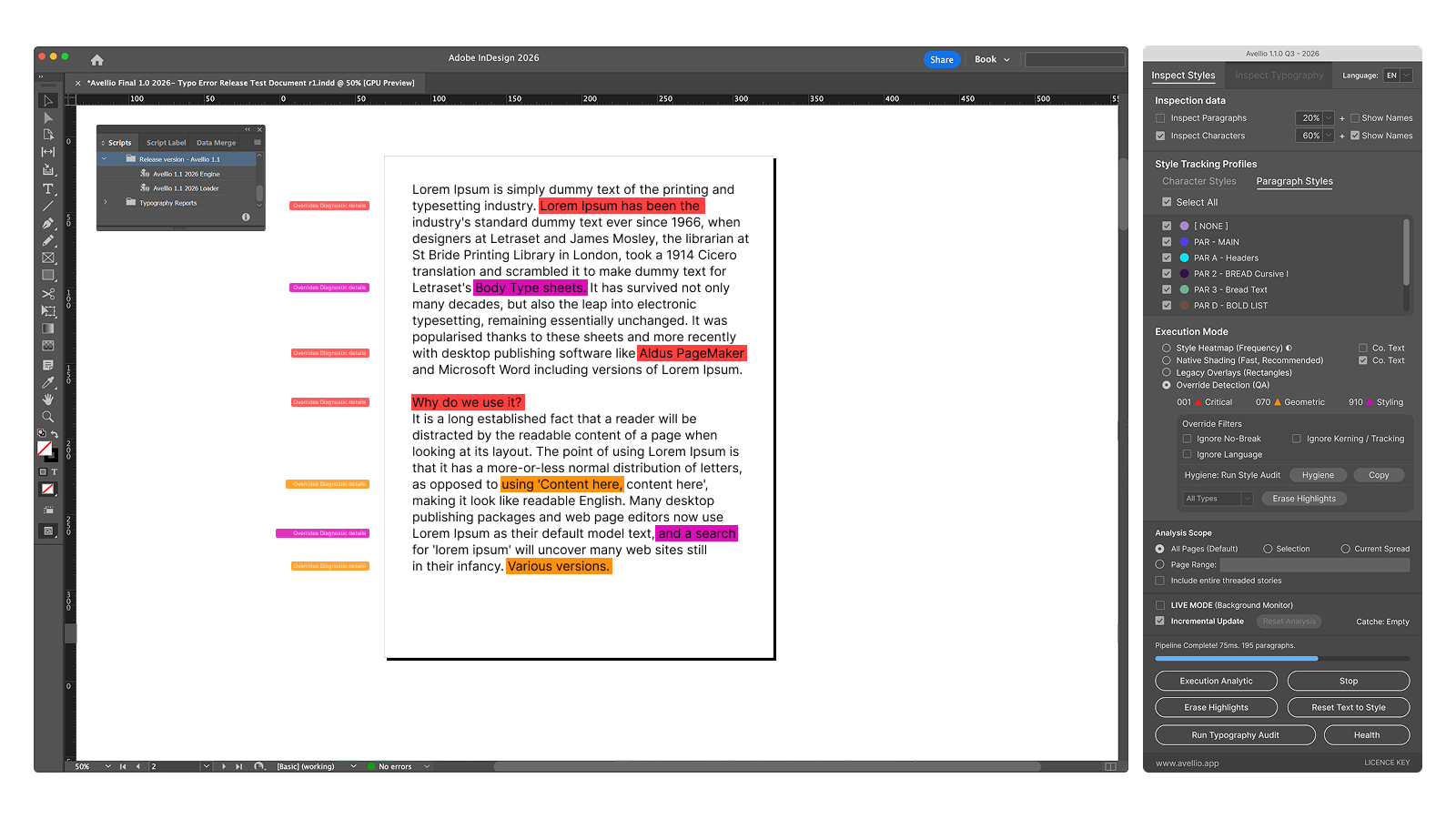
Override Detection compares local text formatting with the applicable paragraph and character styles. It reports unexpected differences without editing the style definitions.
Sensitivity
- Strict reports more deviations and is suitable for tightly governed templates.
- Normal balances coverage and noise.
- Conservative reduces lower-value findings and is suitable for documents with many intentional exceptions.
Override filters
The following filters are available while Override Detection is active:
- Ignore No Break
- Ignore Kerning / Tracking
- Ignore Language
Use a filter only when the ignored property is governed elsewhere or is intentionally variable. Filtering a property hides it from the QA result; it does not remove the underlying formatting.
Main QA groups
| Group | Typical properties |
|---|---|
| Critical | Font family, font style, point size, and leading changes that can break the design system. |
| Geometric | Tracking, kerning, horizontal/vertical scale, and baseline shift. |
| Styling | Fill color, skew, underline, strikethrough, No Break, and language-related styling. |
The detailed Style Hygiene dashboard can additionally classify findings by broader risk or intent concepts, including layout, cosmetic, structural, and unknown-intent cases.
7.7 Selective Eraser (Visual Only)
Within Override Filters, the selective eraser can remove diagnostic markers for:
- All Types;
- Critical only;
- Geometric only;
- Styling only.
This control removes visual diagnostics only. It does not clear the underlying local formatting.
7.8 Style Integrity Audit
Run Style Integrity Audit for an authoritative style result. The audit builds the report model used by the Style Hygiene controls and exports.
After the audit, the compact Hyg: summary becomes available. Use:
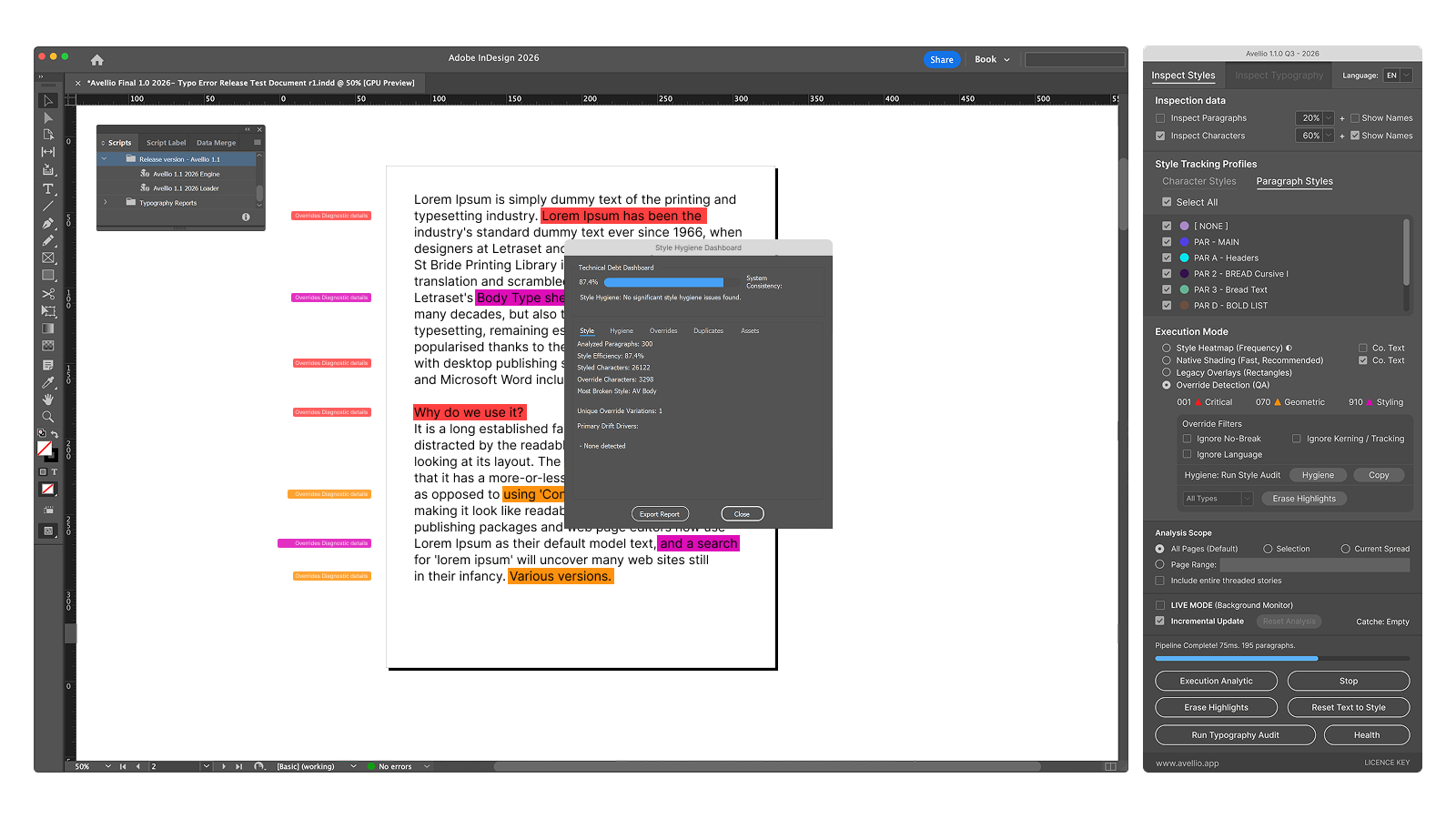
- Hygiene to open the Style Hygiene dashboard;
- Copy to open a selectable Style Audit Summary.
The Copy control opens a modeless text view. Select and copy the text manually; the button does not write directly to the system clipboard.
7.9 Style Hygiene dashboard
The dashboard organizes the latest Style Audit into:
- Style — style usage and consistency summary;
- Hygiene — maintainability and hygiene findings;
- Overrides — local formatting deviations and actionability;
- Duplicates — duplicate or visually equivalent style patterns;
- Assets — relevant document asset information.
The Overrides view can group or filter findings by paragraph style, property, risk, likely intent, actionability, or a flat list. Dangerous and intent-related filters help separate design-system failures from likely intentional exceptions.
7.10 Style reports and navigation
Use the report controls to review summary counts, inspect detailed override records, and navigate supported findings. The exported Override Report is a CSV file written to the Override Reports folder described in Chapter 12.
Release sourceThis page was generated from the Markdown companion of the verified distribution PDF.