

Practical workflow
InDesign Style Override Detector
Find style drift, local overrides, duplicate styles, and hygiene risks before they become a production problem.
The problem
Shared InDesign files accumulate local formatting, near-duplicate styles, and unexamined deviations. The familiar plus sign beside a style name is only the start: it does not explain whether a change is an error, a deliberate exception, or a structural problem.
Without Avellio
- Walk through Paragraph Styles and Character Styles, inspect the plus signs, and manually compare style definitions.
- Clear overrides one at a time only after trying to infer the author’s intent from the page.
- Maintain a separate record of exceptions for collaborators and repeat the review before export.
With Avellio
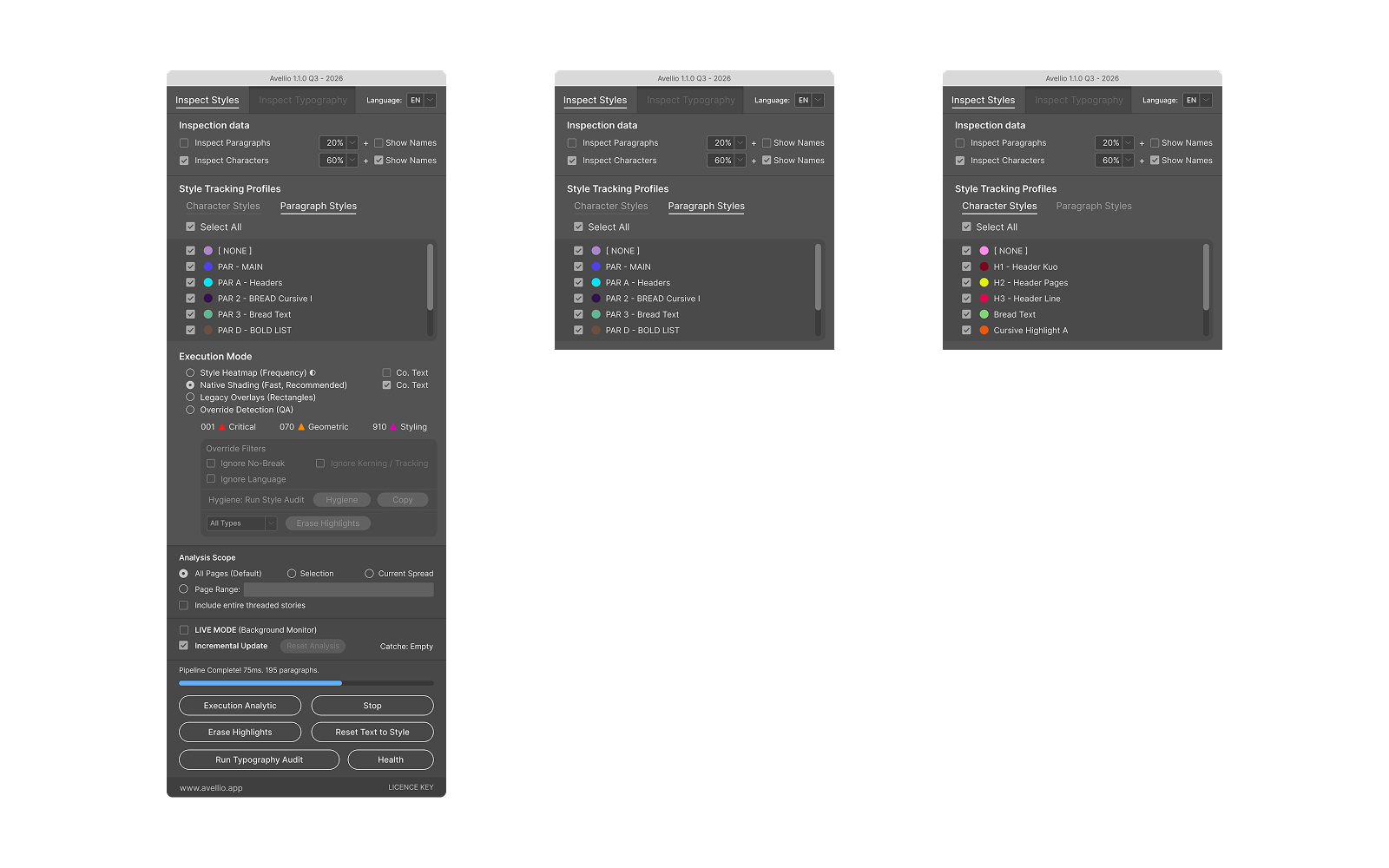
- Run Inspect Styles to expose style integrity, override evidence, and hygiene signals in one workflow.
- Use the paragraph-style and character-style views to decide whether a difference belongs in a canonical style or should remain a documented exception.
- Keep the review/fix distinction intact: verify the intended design system first, then use the appropriate correction path and audit again.
A reviewable workflow
- Duplicate or version the document before normalizing shared production files.
- Open Inspect Styles and scan the relevant paragraph and character style views.
- Review an override in page context and compare it with the canonical style before removing it.
- Repair the style system deliberately, then rerun the style audit and preserve a report for the team.
Limits and human review
A local override can be meaningful—for example, an approved pull quote, a one-off credit, or an intentional optical correction. Avellio helps locate and classify evidence; it cannot decide the intended art direction for you.
Next step
Turn the review into a repeatable habit.
Explore the reference workflow, then bring Avellio into the production process your team already uses.